
The Fastkey Zoho CRM Extension lets you order Canadian criminal record checks, identity verification, and AML/PEP screening directly from your Zoho CRM — without switching between apps. This guide walks you through installing the extension, connecting your Fastkey account, and sending your first verification request.
What You Can Do with the Fastkey Extension
Once installed, you can order any of the following services directly from a Lead or Contact record in Zoho CRM:
- Canadian Criminal Record Checks — Standard and Enhanced, processed through the RCMP
- Identity Verification — Real-time government ID validation
- AML/PEP Screening — Anti-money laundering and politically exposed persons checks
- CRA Document Collection — Secure retrieval of Canada Revenue Agency documents
Results and verified documents are automatically delivered back to the CRM record once the applicant completes the process.
Step 1: Install the Extension
Install the Fastkey extension from the Zoho Marketplace. Search for "Fastkey" and click Install. The extension adds a Fastkey button to your Lead and Contact record detail pages.
Once installed, navigate to any Lead or Contact record and you will see the Fastkey button in the top-right action bar.
Step 2: Connect Your Fastkey Account
Click the Fastkey button on any Lead or Contact record. The first time you use it, you will see the connection screen:
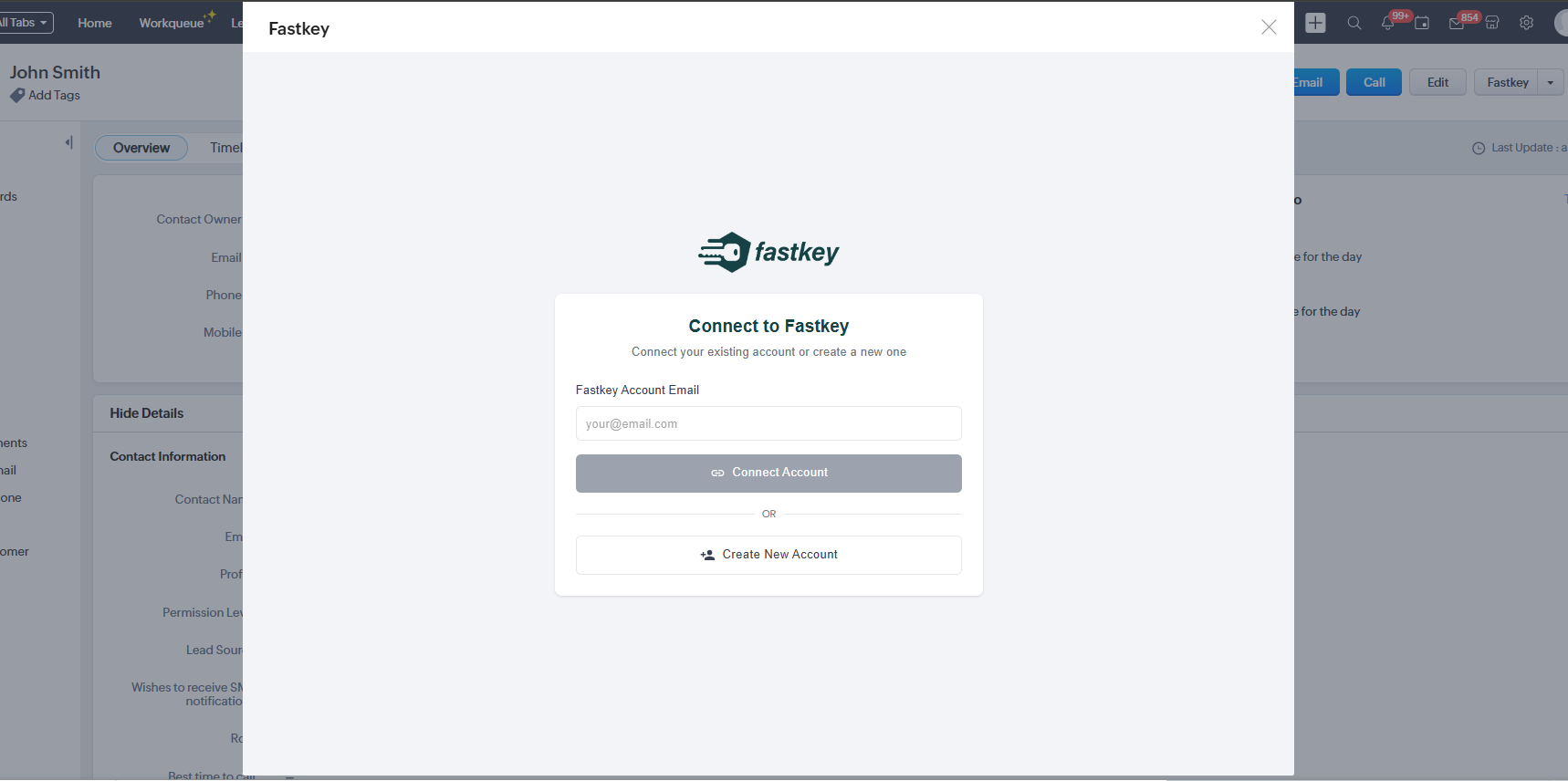
Enter your Fastkey account email and click Connect Account. A secure login popup will appear where you enter your password. If you do not have a Fastkey account yet, click Create New Account to sign up — it takes less than a minute.
Once connected, you will see a green "Connected" badge at the top of the extension with your email address.
Step 3: Authorize CRM Access (Optional)
After connecting, you may see a prompt to Authorize CRM Access. This allows Fastkey to automatically attach completed reports (such as identity verification PDFs) directly to the CRM record. We recommend enabling this for the best experience.
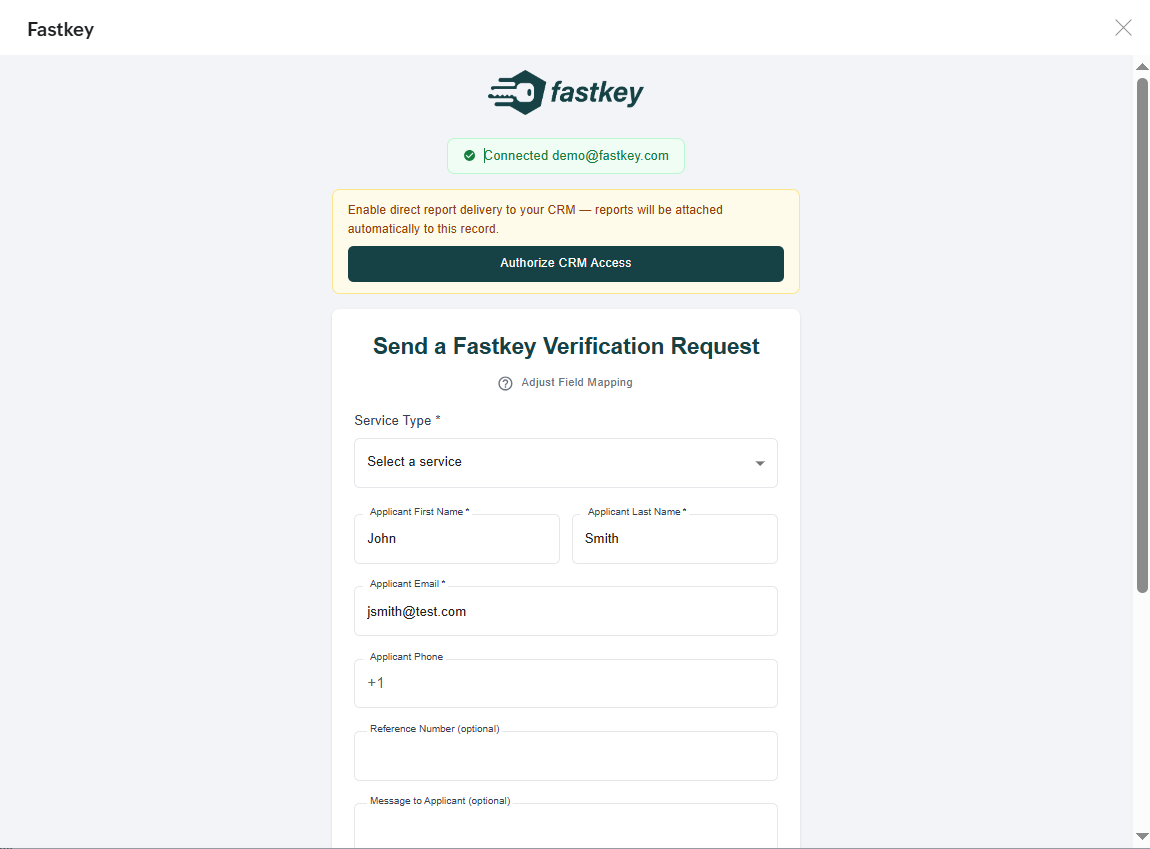
Step 4: Configure Field Mapping
Click Adjust Field Mapping at the top of the request form to configure how your CRM fields map to Fastkey fields. This tells the extension which CRM fields to pull the applicant's first name, last name, email, and phone number from.
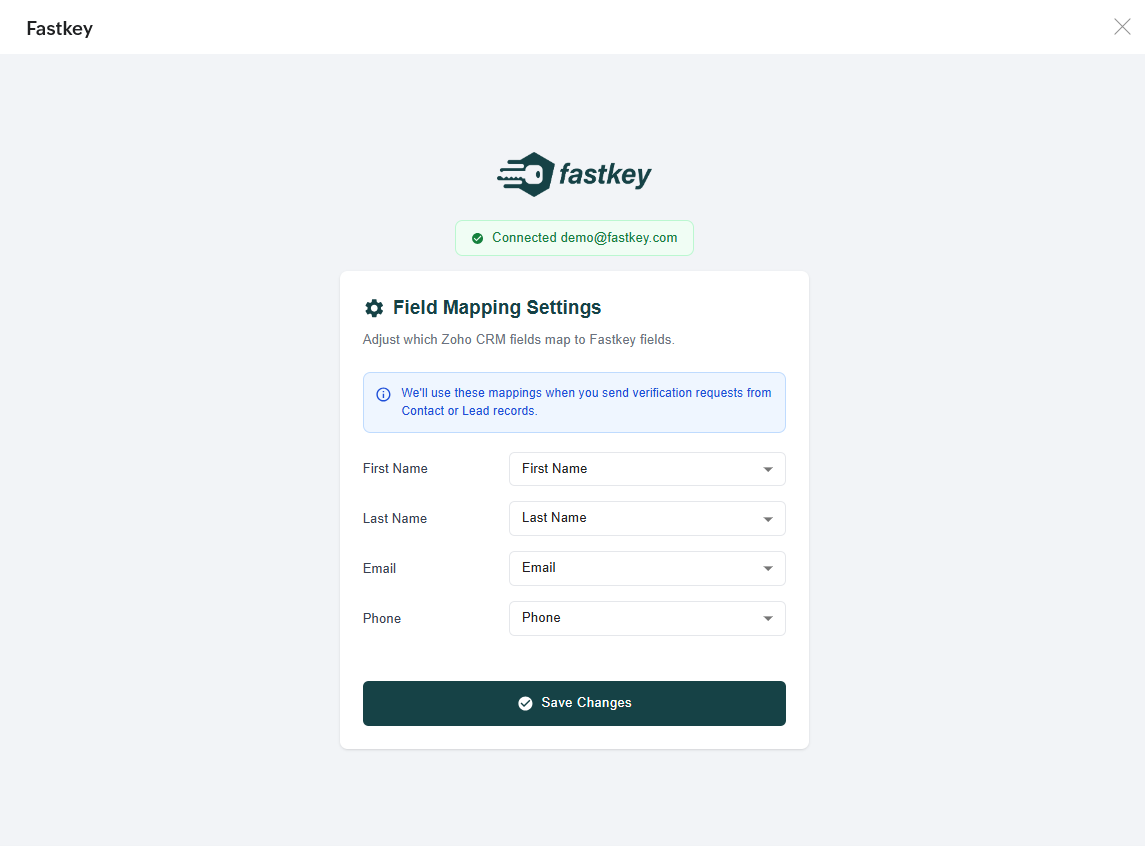
The defaults work for most standard CRM layouts. If you have custom fields for names, email, or phone, update the mapping here and click Save Changes. This only needs to be done once — your mappings are saved for all future requests.
Step 5: Send a Verification Request
With your account connected and field mappings configured, you are ready to send your first request:
- Open a Lead or Contact record in Zoho CRM
- Click the Fastkey button
- Select a Service Type from the dropdown (e.g., Standard Criminal Record Check, Identity Verification, AML/PEP Screening)
- The applicant's name, email, and phone will be pre-filled from the CRM record
- Add an optional reference number or custom message to the applicant
- Review the total cost and click Send Request
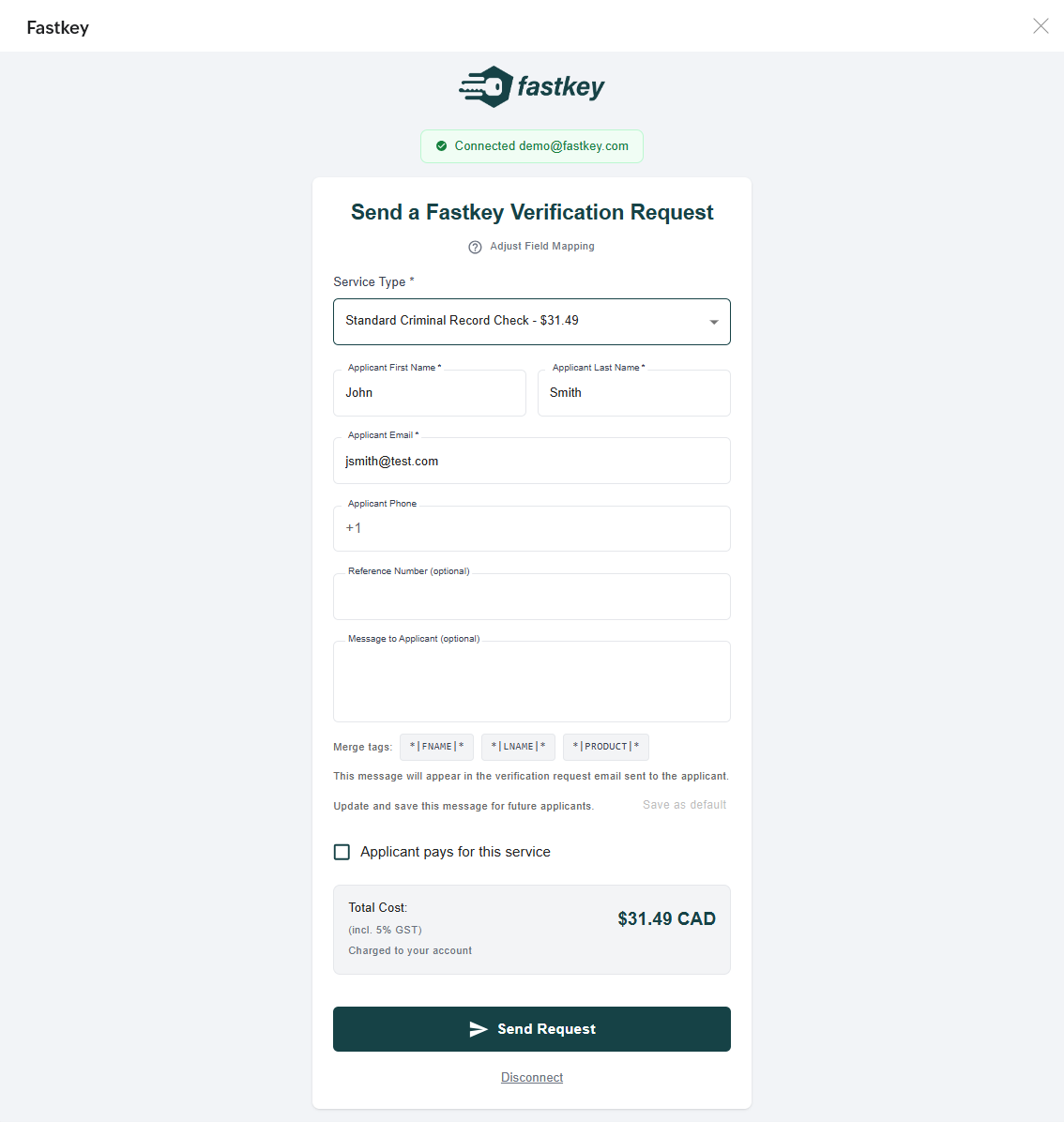
The applicant will receive an email and SMS notification with a secure link to complete the verification. You can include a personalized message using the merge tags (*|FNAME|*, *|LNAME|*, *|PRODUCT|*) to customize the email they receive.
You can also check the Applicant pays for this service box if you want the applicant to cover the cost instead of charging it to your account.
What Happens Next
Once the applicant completes the process:
- Results are delivered automatically — no need to check back manually
- If you authorized CRM access, the completed report PDF is attached directly to the Lead or Contact record in Zoho CRM
- A Zoho Deal is created to track the order, including service type, status, and pricing
- You will receive a notification when results are ready
Available Services and Pricing
The extension supports all Fastkey services. Pricing is displayed in the service dropdown and at the bottom of the form before you submit. If your account has custom pricing, it will be reflected automatically.
| Service | Starting From |
|---|---|
| Identity Verification | $4.99 CAD |
| ID Verification + AML/PEP Screening | $9.99 CAD |
| Standard Criminal Record Check | $29.99 CAD |
| Enhanced Criminal Record Check | $34.99 CAD |
| CRA Document Collection | $19.99 CAD |
Need Help?
If you run into any issues or have questions about the Fastkey Zoho CRM Extension, visit our Contact Us page. We are happy to help you get set up.